How to make a Spotify Canvas with AI (specs and ideas)
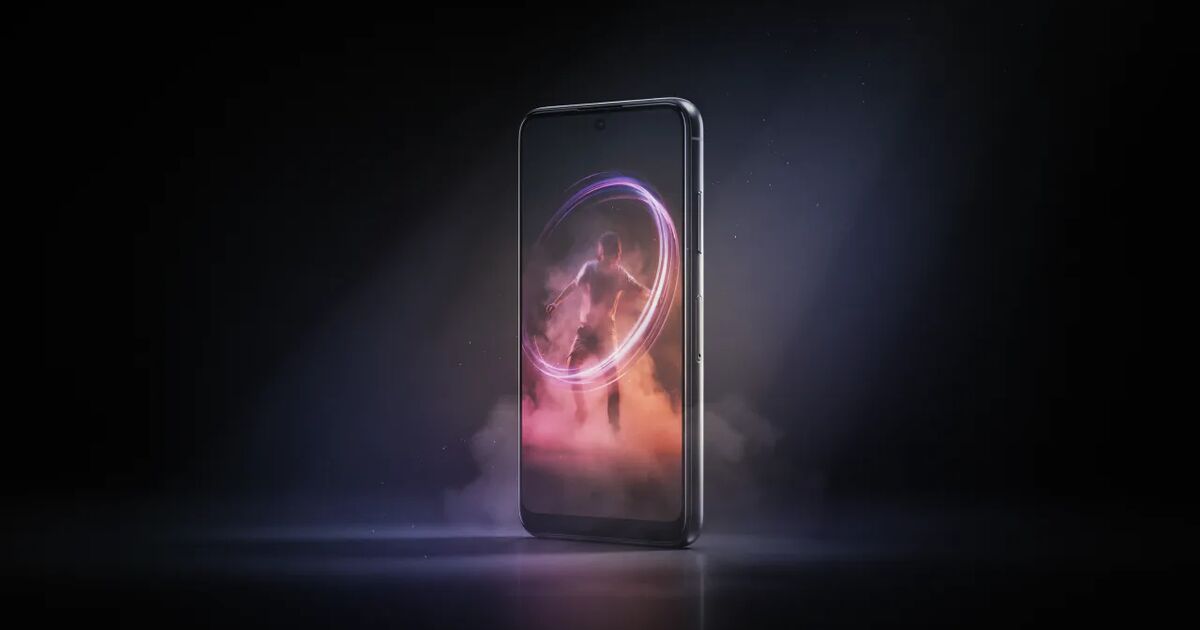
A Spotify Canvas is a short vertical video loop of 3 to 8 seconds that plays behind a track in the Spotify mobile app; Spotify's guidelines ask for a 9:16 file, between 720 and 1080 pixels tall, as MP4 (or a JPG still). To make one with AI, generate a single striking image that matches the song, animate it into a slow, continuous shot that loops cleanly, export a few seconds in 9:16 and upload it in Spotify for Artists. It takes under an hour and needs no footage.
Canvas turns the "now playing" screen from a small square of cover art into moving visuals. It is one of the few promotional assets that shows up exactly where people are already listening to your music. This guide covers the specs Spotify publishes, what makes a loop work, how to make one with AI tools and how to upload it.
Spotify Canvas specs
Spotify publishes its requirements in the Canvas guidelines in Spotify for Artists. At the time of writing they are:
| Spec | Requirement |
|---|---|
| Length | 3–8 seconds |
| Aspect ratio | 9:16 (vertical) |
| Height | 720–1080 pixels |
| File type | MP4 video (JPG for a still) |
| Sound | None — the track itself plays |
Spotify also advises against footage of people talking, singing or rapping — a Canvas plays on repeat over the song, so mouths that do not match the music look wrong. Guidelines change, so check the current Canvas guidelines in Spotify for Artists before you upload.
What makes a good Canvas
A Canvas plays silently in a loop, on a phone, while someone listens. That context decides what works:
- One idea. A single shot or a very short sequence. Busy edits are tiring to watch on repeat.
- Continuous motion. A slow push forward, drifting smoke, rain on glass, light sweeping across a face, a car moving through a city at night. Motion is what makes it feel alive.
- A seamless loop. The end should flow into the start so viewers do not notice the restart.
- Bold, simple composition. The phone screen is small and the app places the track title and controls over the bottom of the video. Keep the important part in the middle and upper half.
- Matches the song. The colours, pace and mood should feel like the music. A calm ballad with a frantic Canvas feels wrong.
- No lip-sync, minimal text. Singing faces conflict with the guideline above, and text competes with the app's own interface.
Making a loop feel seamless
The trick to a good Canvas is that nobody notices where it starts again. A few techniques:
- One-direction motion. A slow, steady camera push or pan is easier to loop than an action with a beginning and an end.
- Cyclic motion. Waves, flickering lights, falling snow, a rotating object — things that naturally repeat.
- Avoid entrances and exits. If a person walks into frame, the loop will show them vanishing.
- Cut on similar frames. Choose start and end points where the picture is nearly identical.
- Keep it short. A 4–6 second loop is easier to make seamless than a full 8 seconds.
Step by step: make a Spotify Canvas with AI
- Pick the moment. Choose the feeling of the song, or the image from its chorus. One sentence: "a lone figure on a rooftop in the rain, neon city below."
- Generate the still. In the Clipbeat editor, open Studio and generate an image in 9:16 that captures that sentence. Generate several and pick the strongest. Keep the main subject in the centre and upper half of the frame.
- Animate it. Turn the image into a short video shot with slow, continuous motion — a gentle push in, rain falling, lights flickering. Avoid fast action and anyone singing.
- Trim to a clean loop. Place the shot on the timeline and keep the 3–8 seconds that loop best.
- Export in 9:16. Export only that section. For a clean file without the watermark at 1080p, any one-time credit pack (from $5) unlocks it; exports before any purchase are 720p with a small watermark.
- Upload in Spotify for Artists. Open your track in Spotify for Artists, choose Canvas, upload the file and check the preview on your phone.
Get your Canvas from your music video
If you are making a music video for the same song, you may not need a separate project. A vertical music video made in 9:16 already has a scene for every lyric line; the strongest few seconds of a scene from the chorus — without singing — can be trimmed into a Canvas loop. In Clipbeat, a full-song AI video is one-time: $5 Standard, $19 Plus or $39 Premium. Set the project to 9:16, then export a short section for Canvas and longer sections for TikTok, Reels and Shorts.
Going the other way works too: images and shots you make for the Canvas can be reused in a lyric video or a full music video.
Canvas ideas by genre
- Lo-fi and chill. A window with rain, a desk lamp, a cat sleeping. Slow, warm and cosy.
- Electronic. Abstract shapes, light trails, a slow camera through a neon tunnel. See visualizer-style videos.
- Hip-hop and trap. A city at night from a moving car, smoke in a streetlight, a figure on a rooftop.
- Folk and acoustic. Sunlight through trees, a field in wind, a road from a car window.
- Pop. Bold colour, a confident pose with subtle motion (hair, fabric, light), glitter or confetti falling.
- Rock and metal. Fire, storms, slow-motion debris, high-contrast black and white.
Common mistakes
- Horizontal or square files. Canvas must be vertical.
- Too long or too short. Stay within 3–8 seconds.
- Lip-syncing or talking. Against the guidelines and awkward on repeat.
- Text and logos everywhere. The app already shows the title and artist.
- Jarring loop point. Viewers see the jump every few seconds.
- Important details at the bottom. The player controls cover them.
Who can upload a Canvas?
Canvas is added through Spotify for Artists, so you need access to the artist profile the track is released under. If your music is released through a label or distributor that manages your profile, ask them. Clipbeat creates and exports the file; it does not publish to Spotify for you.
What it costs
Making a Canvas in the Clipbeat editor uses credits for the AI image and the video shot, sold in one-time packs from $5, with no subscription. The AI Director shows a credit estimate before anything runs. Browser export never uses credits. The Spotify Canvas maker page has more detail.
Frequently asked questions
How long is a Spotify Canvas?
Between 3 and 8 seconds. It loops for as long as the track plays.
What size should a Spotify Canvas be?
Vertical 9:16, between 720 and 1080 pixels tall, as an MP4 file. Check Spotify's current Canvas guidelines before uploading.
Can I put lip-sync or singing in my Canvas?
Spotify advises against footage of people talking, singing or rapping. Use motion, mood and atmosphere instead.
Can I make a Spotify Canvas with AI?
Yes. Generate a vertical image, animate it into a short shot with slow motion, trim it to a clean 3–8 second loop and export it in 9:16.
Can Clipbeat upload my Canvas to Spotify?
No. Clipbeat makes and exports the file; you upload it in Spotify for Artists.
Turn your song into a music video
Upload your song, watch your chorus preview and check the lyric-matched scene plan. Your full video is one-time, from $5 — no subscription.
Start with your songUpload and plan free · $5 one-time for your video · no subscription